
The images in this article were generated with artificial intelligence. How we publish
Microsoft has again added one of the most recurrent requests from Windows 11 users: the possibility to resize and move the task bar and customize the Start menu, though for now only for those participating in the Insider Experimental channel. In the compilation Windows 11 Insider Preview Build 26300.8493 The bar can be configured with smaller icons and placed at the bottom, top or any side of the screen, and the Start menu incorporates controls to hide the recommended section and adjust its size.
This movement is relevant for two reasons: first, it returns flexibility to the interface after the radical design changes that Windows 11 brought; and second, it responds to real uses such as ultra-panoramic screens, vertical working environments or users who prefer to maximize useful space. The "small taskbar" option not only reduces height, but changes visual density, something that can improve productivity but also affect accessibility if the touch targets are too small.
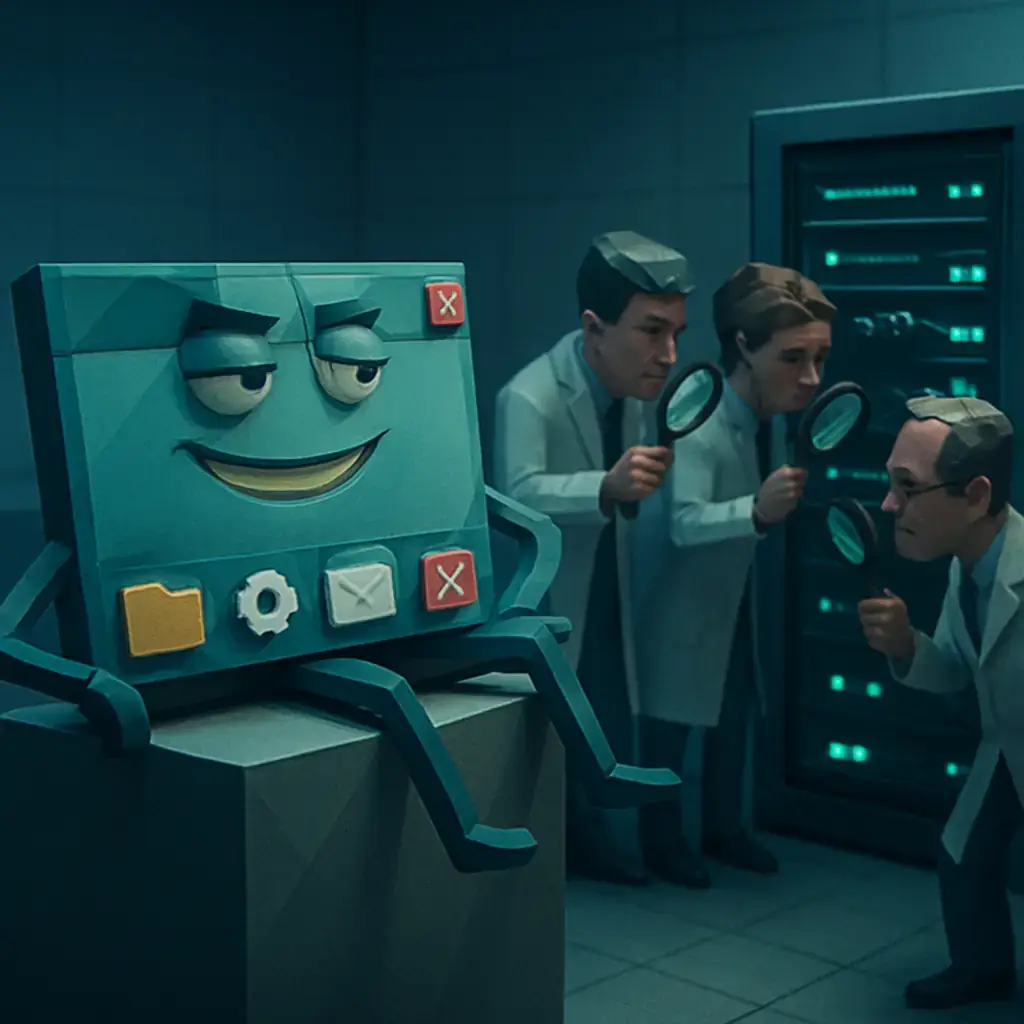
From a safety and management perspective, it should be recalled that these new developments are in the Experimental channel, designed for testing: it is not recommended to install them in production equipment without validating their stability. Managers should test changes in virtual machines or pilot groups, verify compatibility with management tools and ensure that group policies or user profiles are not altered by the new configuration.
As for privacy, Microsoft maintains the list of newly installed applications as a discovery mechanism for Microsoft Store, which may be useful but may involve exposure of installation activity on shared equipment. The company has added the option to hide the name and profile photo in the Start menu, and allows to disable items such as "Recommended" to leave only the apps set. If you are concerned about telemetry and recommendations, check and adjust these controls before synchronizing your corporate or personal account.
Another minor but remarkable change for advanced administrators and users is the testing of a new modern version of the Run (Win + R) box, with support for dark mode and the removal of the "Examine" button that, according to Microsoft, was barely used. This can affect very specific workflows or scripts that depend on that visual functionality, so check that your shortcuts and internal tools behave the same and enable the option manually from Settings > Advanced Settings if you decide to test it.
Beyond aesthetics, Microsoft has framed these changes within a broader commitment to improve the quality and consistency of the system, including fewer intrusive notifications, simplification of the Configuration and a more uniform search experience between Start, taskbar, File Explorer and Settings. You can read the official design and quality explanation on the Windows Insider blog to understand context and priorities: Improvements to taskbar and Start and the broader vision previously announced by Windows managers: Our commitment to Windows quality.
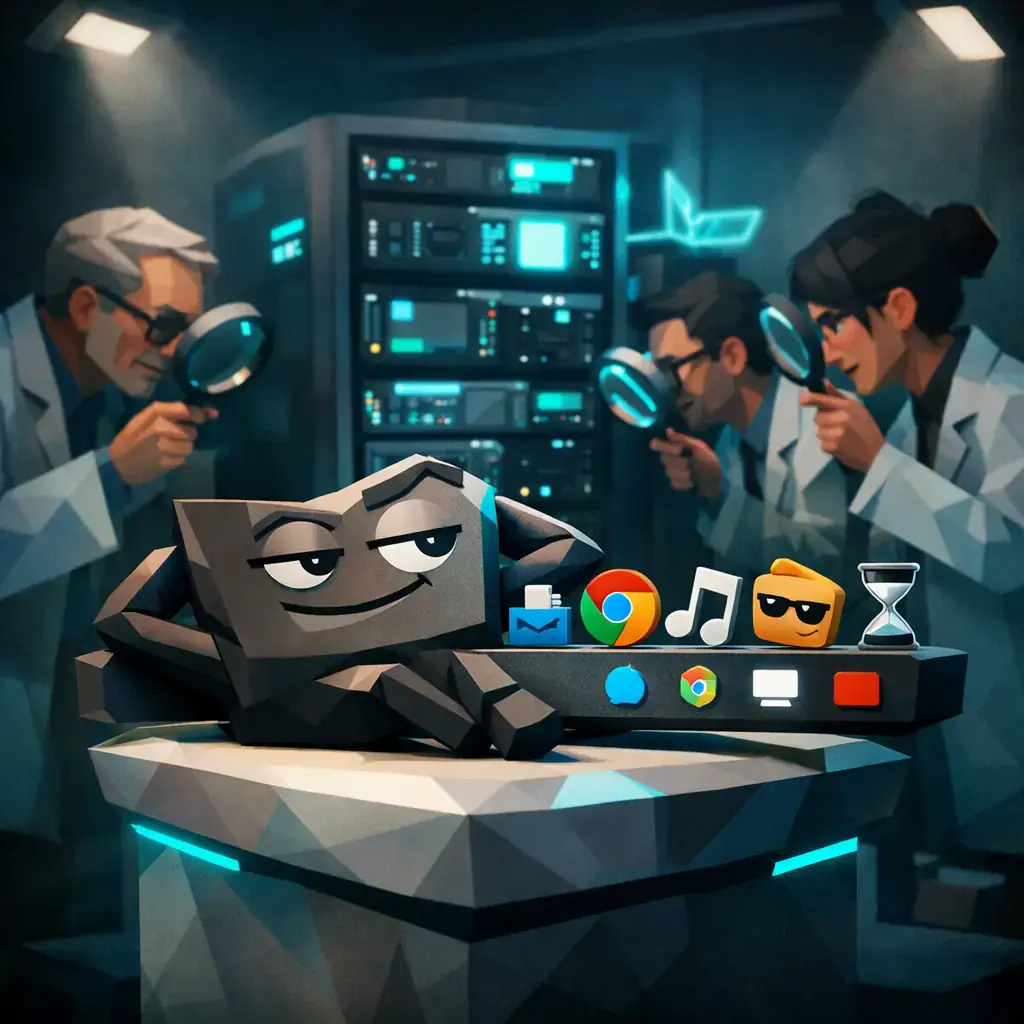
If you are an end user and you want to try these options now, my practical recommendation is clear: first make a backup or restoration point, test the build in a secondary machine or VM, and document any changes in policies or scripts that manage the environment. Do not install experimental releases in equipment that support critical processes without prior validation, and shares feedback through Insider's hub for Microsoft to tune the experience before overall deployment.
For corporate teams, consider considering these new developments in your update plans: update support procedures, inform users how to hide recommendations or profile photo if necessary, and assess the impact on training and accessibility. The return of historical options such as moving the bar and adjusting its size facilitates the transition between versions and reduces the need for third-party hacks and tools, something positive for both safety and maintenance.
In short, these improvements return valuable options to users and show a feedback-oriented approach, but their experimental nature requires caution. Test, measure and control before adopting large-scale changes; if you want to consult the complete notes and technical details, official documentation of the build and the entries of the Windows Insider blog are the starting point for planning tests and deployments.
GhostAction Expands Attack: phishing to steal credentials and persistence in VS Code
A group behind the GhostAction campaign - already known for infiltrating GitHub Actions workflows into open source projects - has expanded its arsenal: in addition to installing...

ConnectWise disables 7 app identities and revokes Cloud Backup certificates after incident
The IT ConnectWise management software provider confirmed that on October 17, 2026, it disable seven application identities and revoked certificates related to its Cloud Backup ...
Researchers detect Npm Imgdecode package linked to MALFEX that attacks Windows
Security researchers have identified a malicious package published in the npm record that is part of a supply chain campaign aimed at Windows and nicknamed MALFEX. The package, ...
OpenBSD 7.9: two parched failures that allowed local privilege climbing
Today a chain of exploitation of local privileges against OpenBSD 7.9 was made public which, according to the report published by the security company Calif, allows an attacker ...

OpenAI reveals unaligned IA incidents; a GPT-5.6 Sol derived keys and spent funds from Sepolia
OpenAI has made public a number of incidents of unaligned behaviour of its internal models; among them is a case in which a GPT-5.6 family research model Sol derived private key...
Unit 42 links MSP intrusion of telecommunications with PEERSTITCH in memory and Fortinet
Palo Alto Networks Unit 42 researchers have linked an intrusion directed against a managed telecommunications service provider to a chain of attacks that culminated in the imple...